Table of Contents
Advanced Features of Classrooms
Ritter Annex 565
Ritter Annex is equipped with 9 student "pods", and, at each pod, there is a wall-mounted large TV screen.
Please see below for instructions on using the equipment and LanSchool in RA565. You can click on the images to expand the size.
See photos of the room on the Classroom Lookup System.
Turing on the projector and TVs
Please follow these steps for navigating the touch panel in this room (or watch this quick video to see it in action)
| 1. Touch on the screen to activate the system |  |
| 2. Press PC to turn on the projector in the room | 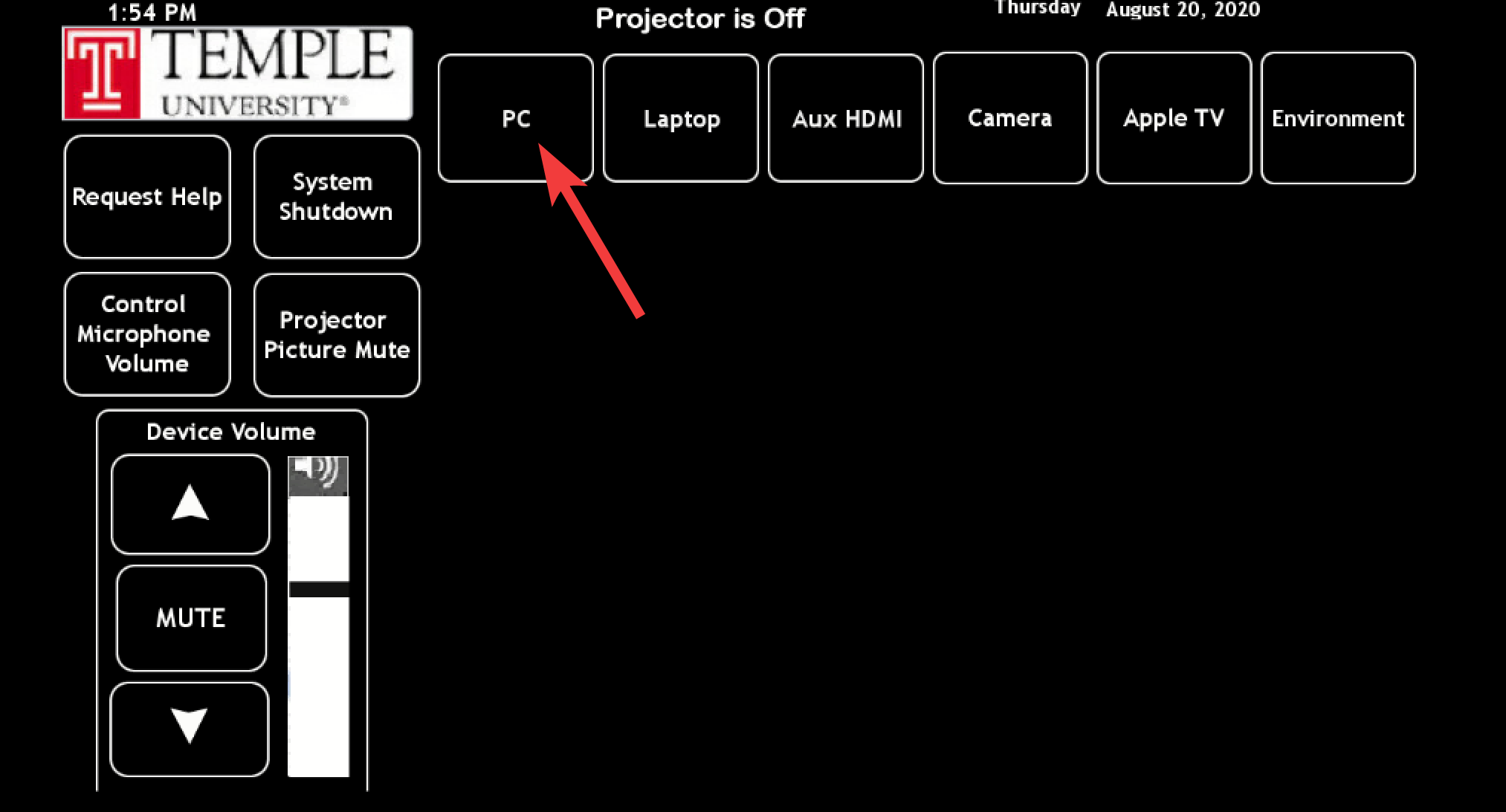 |
| 3. You will a message along the top that says Projector is Warming | 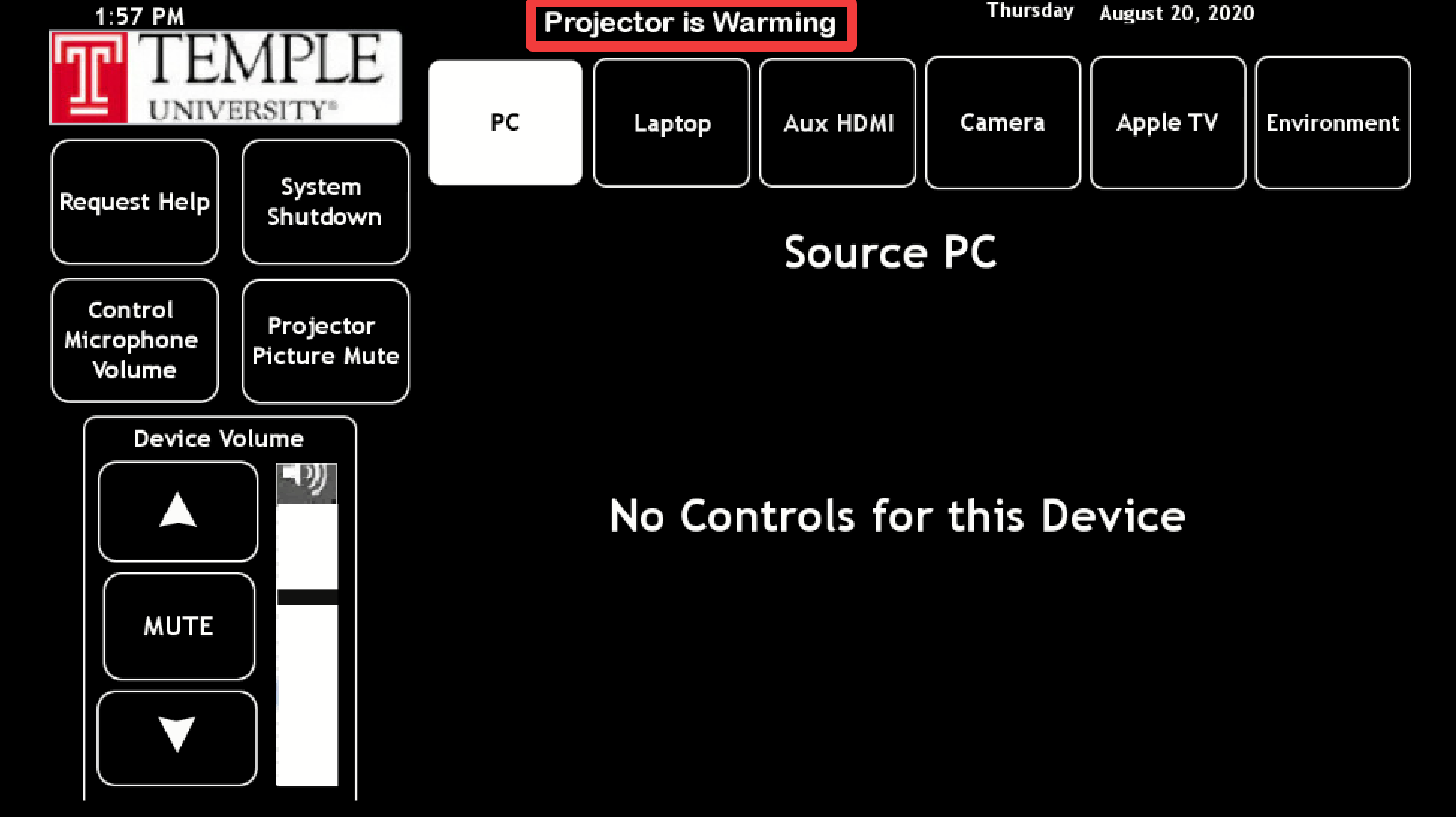 |
| 4. When you see Projector is On along the top, you are ready to turn on the TVs in the room | 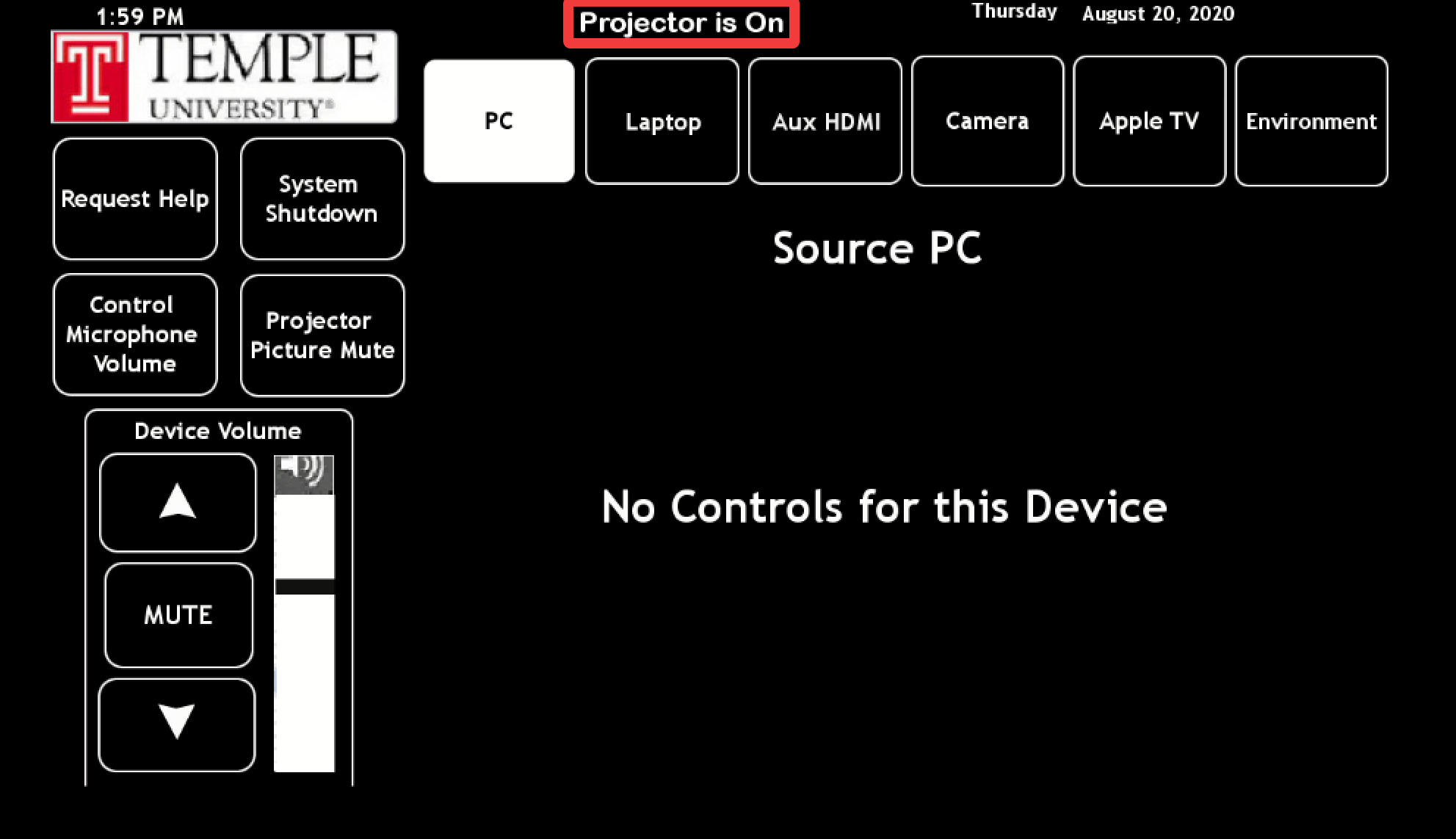 |
| 5. Press Environment | 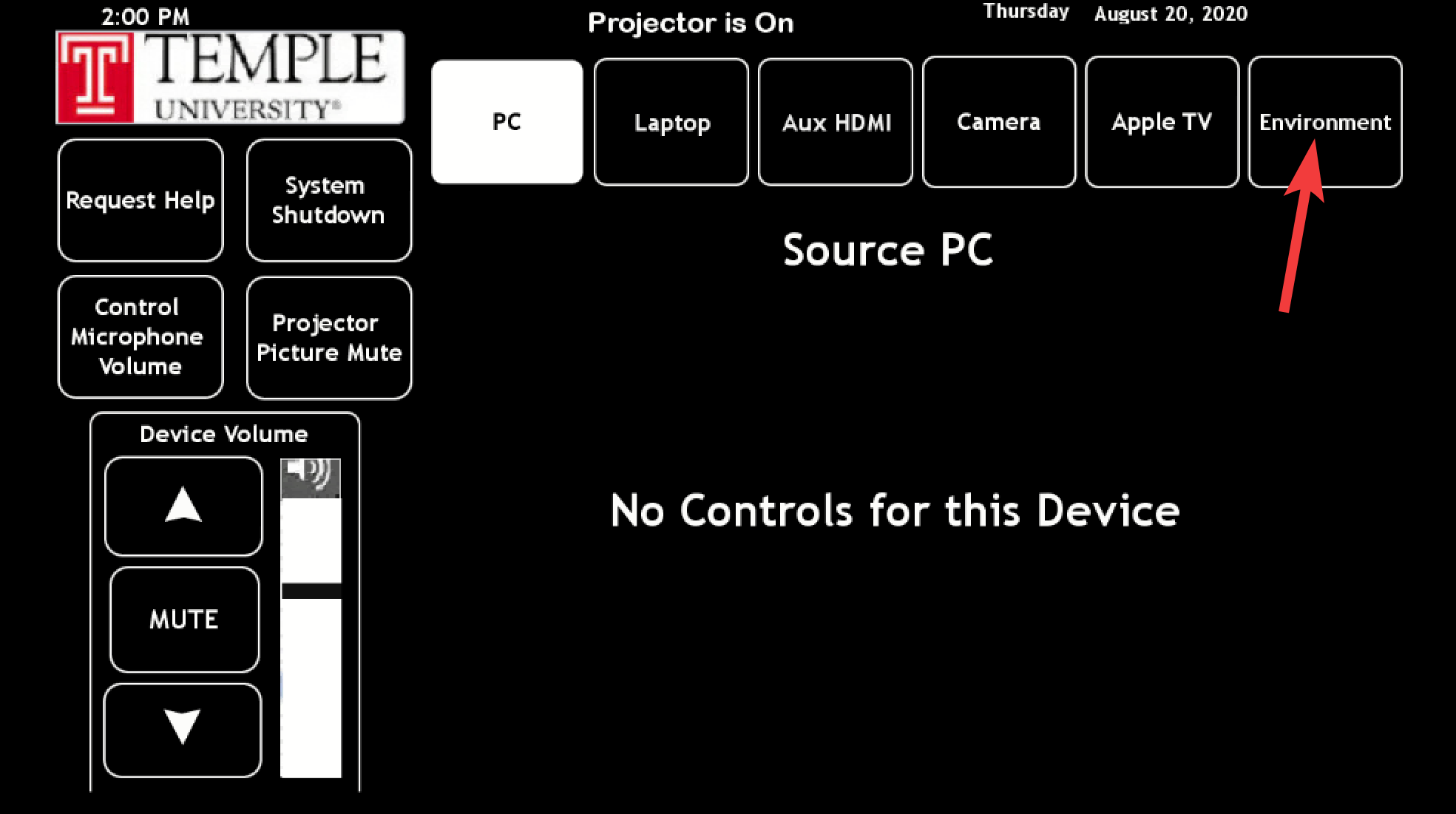 |
| 6. Below the word Monitors, press On | 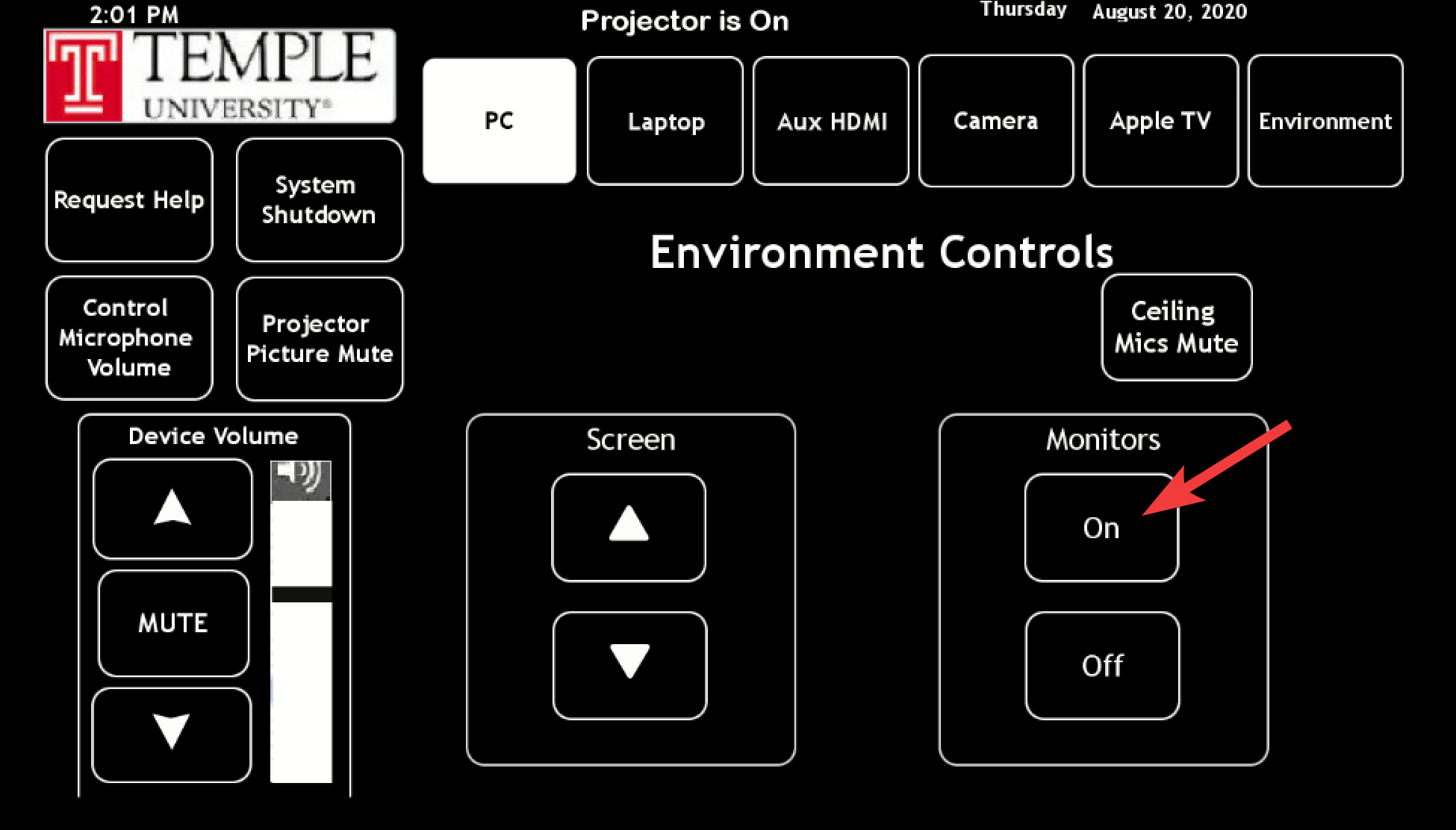 |
| 7. You will see the TVs begin to wake up |
Using Lanschool to Show the Teacher Screen to the TVs throughout the Room
| 1. After you have signed into the computer, double-click on the Lanschool icon found on the desktop |  |
| 2. The Lanschool Teacher Console will open | 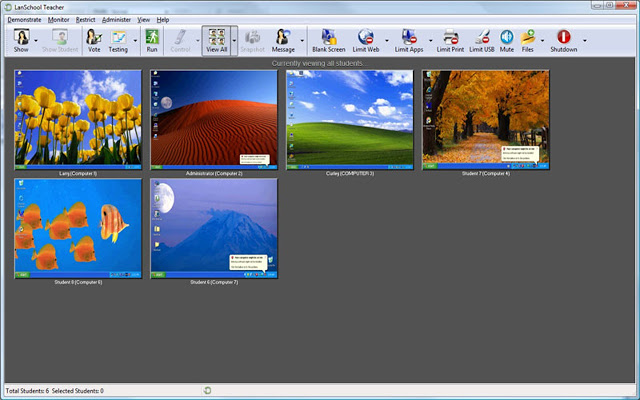 |
| 3. Click in the center of the Show button to show what is on your screen to the TVs throughout the room | 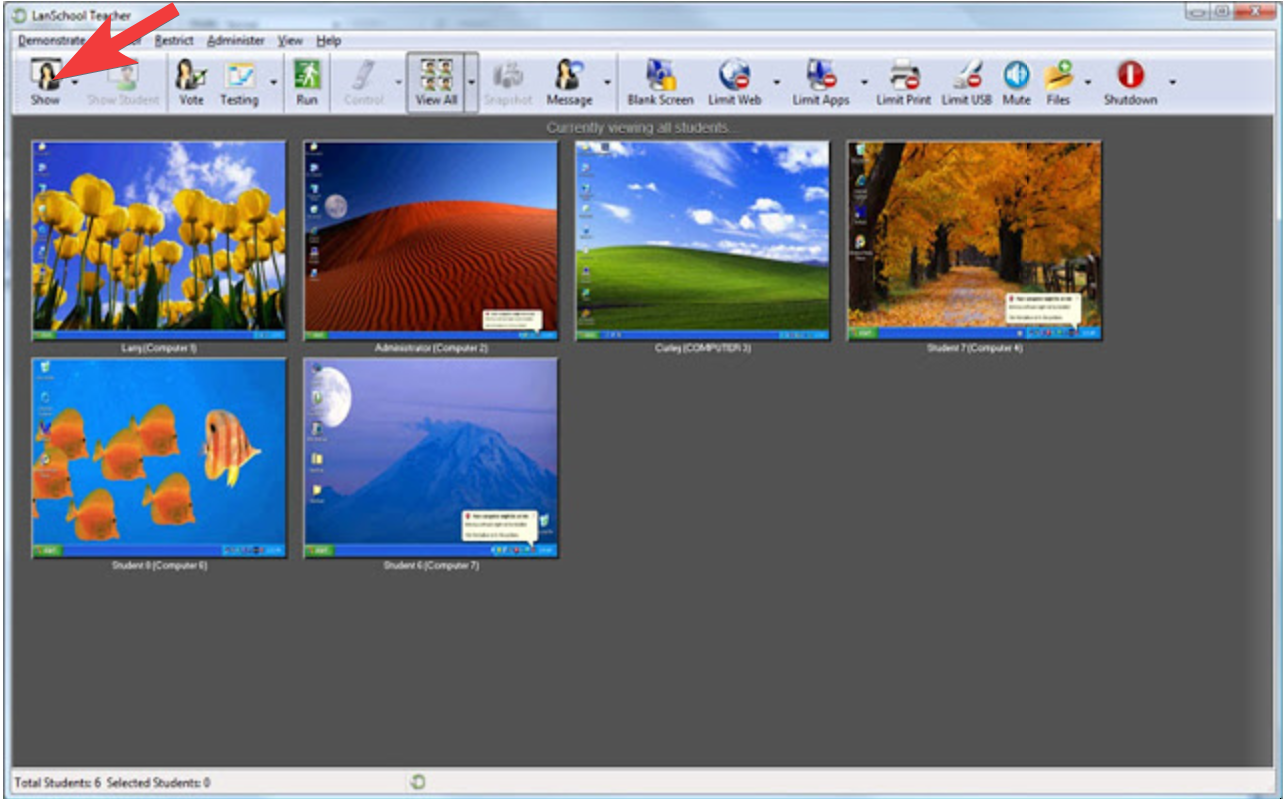 |
| 4. Click in the center of the Show button again to stop showing your screen to the TVs throughout the room (this button works like a toggle) |
Using Lanschool to Show a Student Screen to the rest of the TVs Throughout the Room
| 1. In the Lanschool Teacher Console, select a student screen to show to the rest of the screens | |
| 2. A red box will go around that selected screen | 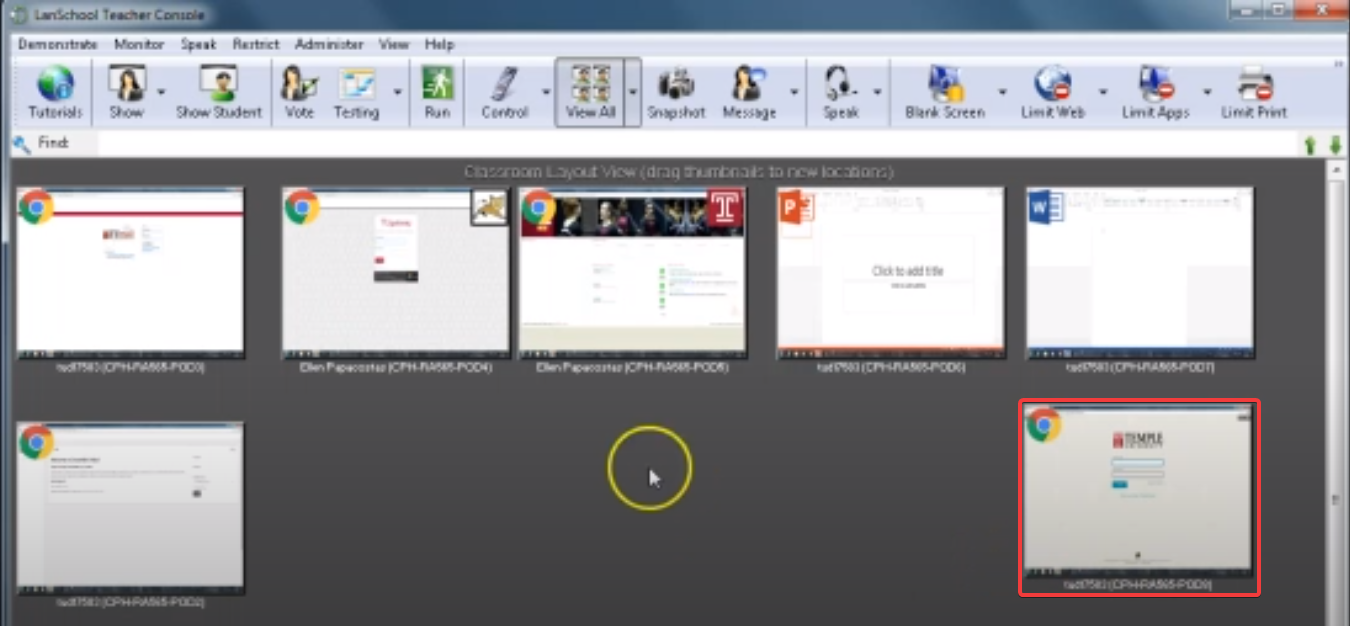 |
| 3. Click on Show Student | 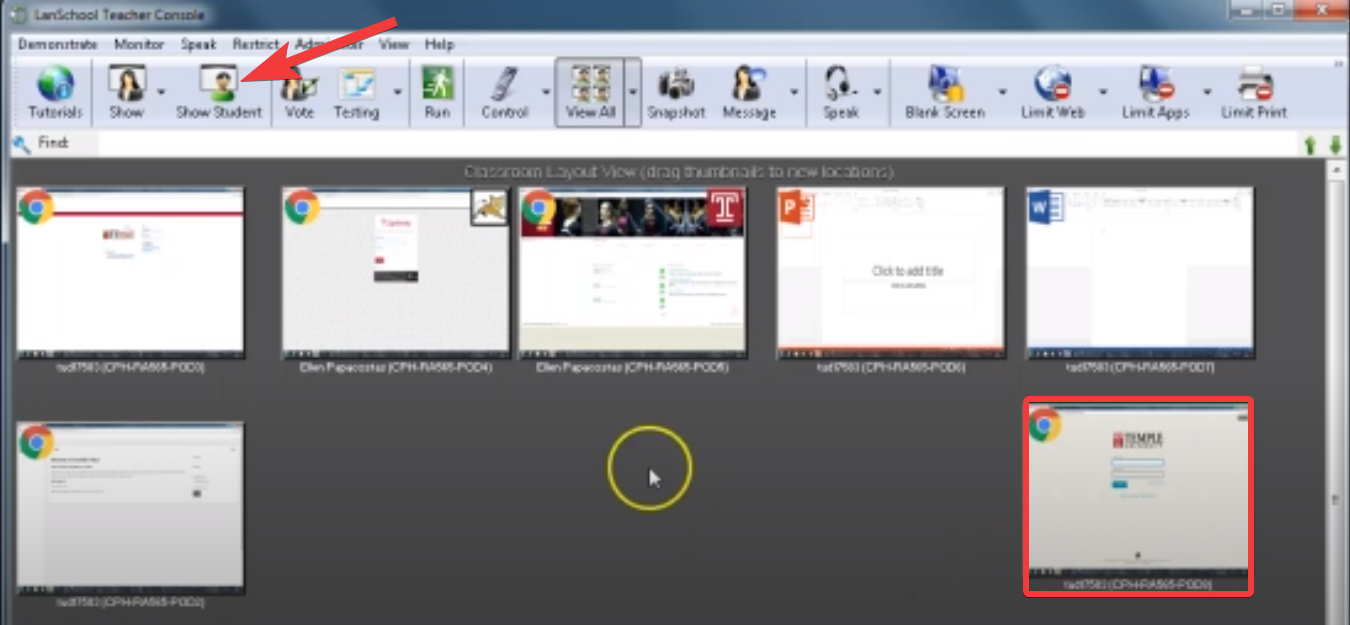 |
| 4. To stop showing that screen, click on Show Student again |
Shutting Off the Projector
| 1. Press System Shutdown | 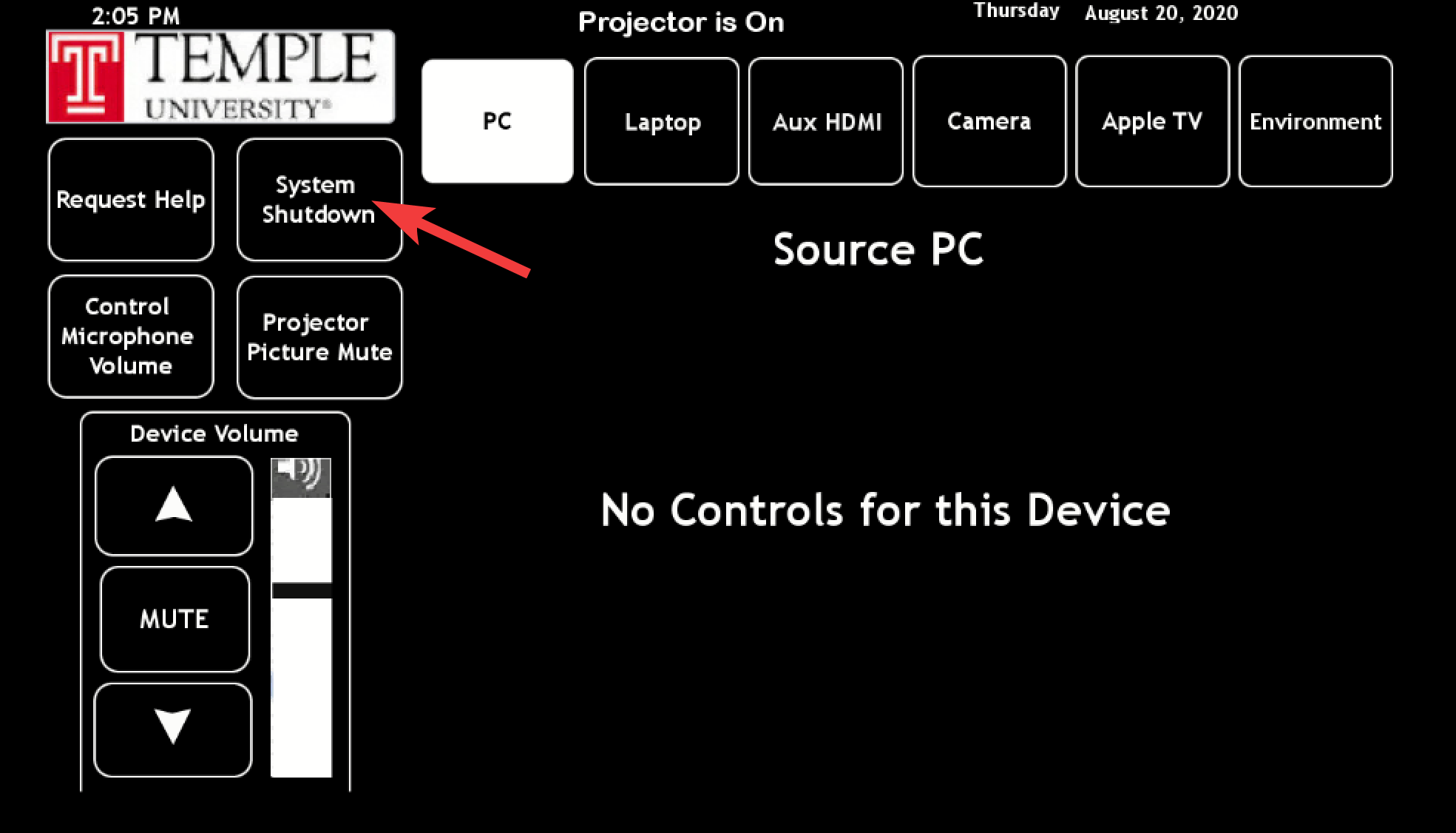 |
| 2. Then press Shutdown Without Password | 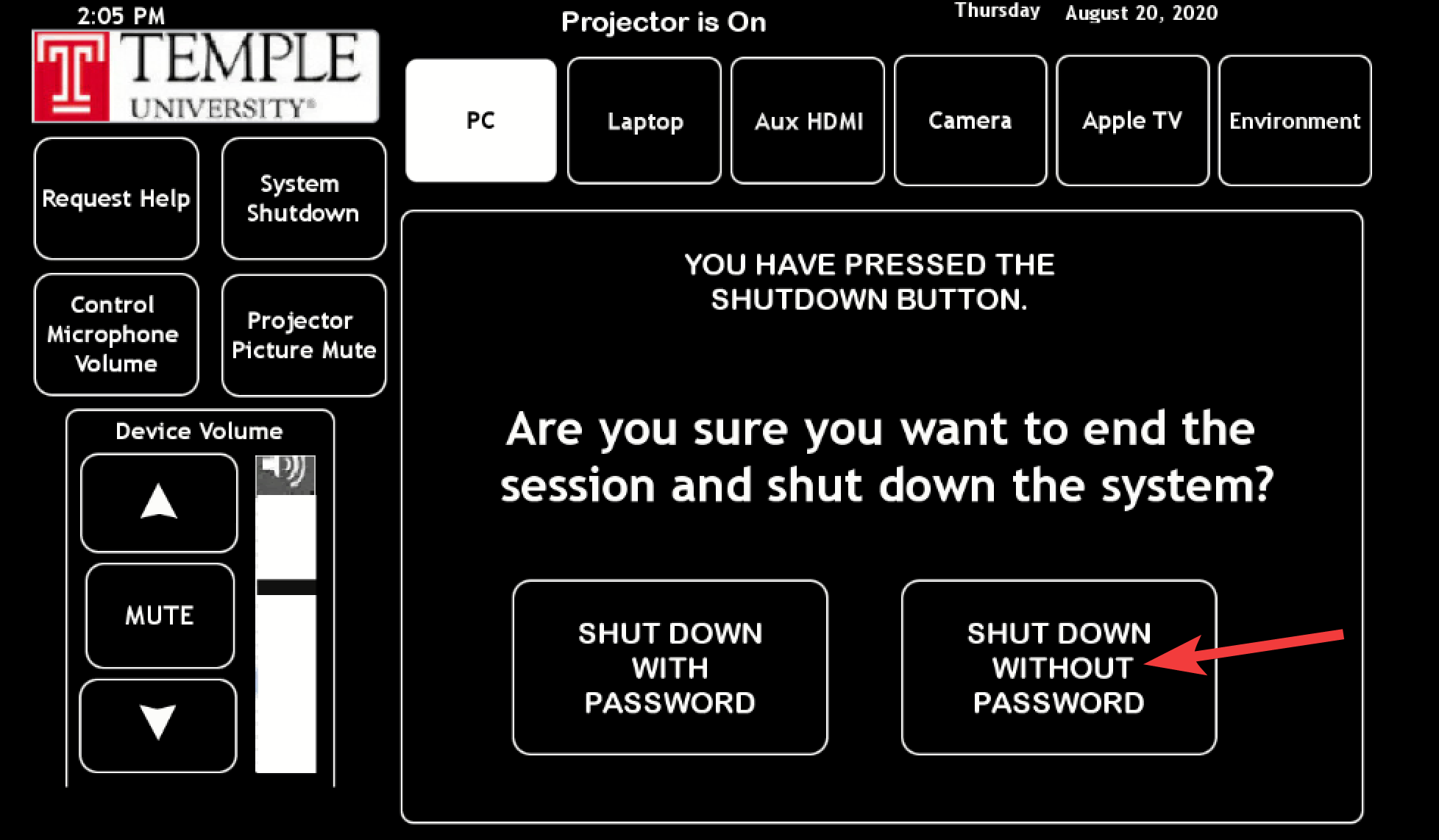 |
Getting Technical Assistance During Class
- On the touch panel, press Request Help
- Press Confirm
- A member from the Classroom Technology Support (CTS) will either call in via the panel or come to the room to troubleshoot